Result activity layout
When you run the app, you will see that the result activity is currently empty – let’s add the layout. The activity will have two display states. One will show a progress bar and a label while the QR code is being generated. The other display state will show the QR code along with a few buttons for changing the size of the image with the QR code.
We will need a few new string resources. Add the following to your strings.xml:
And then open activity_result.xml and replace the current XML with the code below:
Let’s go over the XML code above. We will have the root container widget be a ConstraintLayout as it will offer the flexibility to arrange the multiple child widgets in an easy way. For the first display state/mode, the one to show the progress bar and a message/label, we have a LinearProgressIndicator centered on the screen, and a TextView to show the message is anchored above the LinearProgressIndicator.
For the other display mode, we have a nice button group at the top of the screen to quickly allow a user to select a preferred size of the image showing the QR code. Under the group of buttons is a TextView that will show the information encoded in the QR code. Finally, below the TextView is a FrameLayout that will hold a CardView. It is the child of the CardView that will be the ImageView that will hold the QR code. The CardView provides an easy way to play around with a border and elevation of the ImageView. The FrameLayout is a simple sizing and positioning container that will be independent of the anchors required by the outer ConstraintLayout. If you entered the code correctly, you should have something similar to the design view image below:
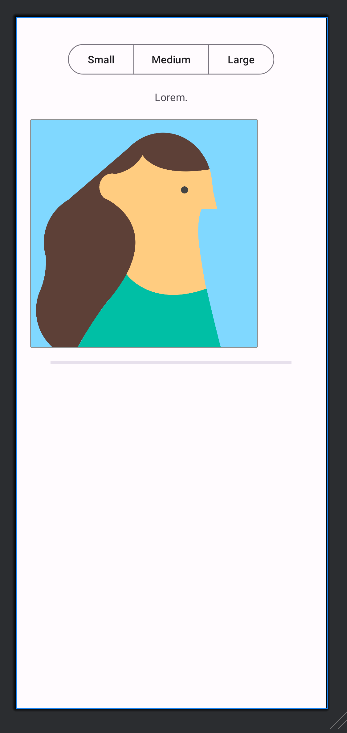
Result layout at design time